1. Load amount onto the HOST-Card
- A valid user account and a sufficiently charged HOST card are required for copying/printing and scanning with the HOST card.
- The HOST-Card can be topped up at the top-up terminals in the Mensa vestibule.
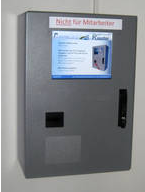
2. Transfer the amount from the HOST Card to the personal printer account.
- Any amount can be transferred from the loaded HOST-Card to the printer account via the automatic transfer machines.
- Transfer machines are located in the vestibule of the Mensa and in building 21 on the second floor.
- The transferred amount is used for print/copy or scan services.
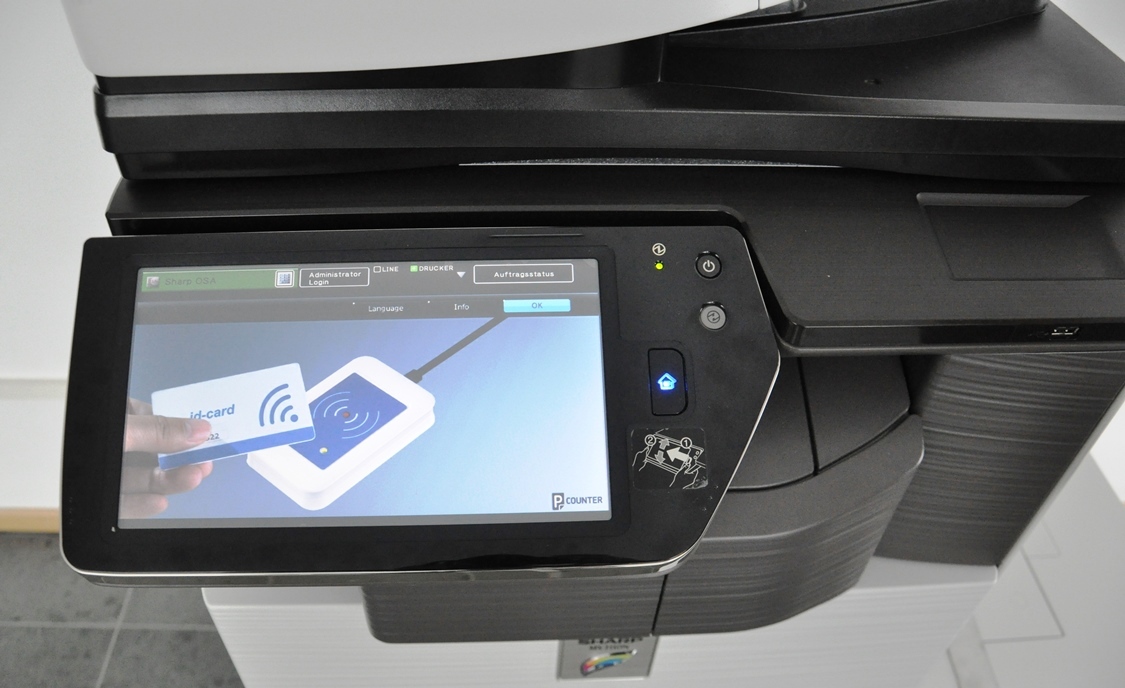
3. Register the HOST-Card on the unit
- This procedure must only be carried out once.
- Place the HOST card on the reading area of the printer.
- If the card has not yet been registered, the login name (short login e.g. swthadam) and password will be requested. Do NOT use the email address!
- If the login name is requested again during repeated use, an error has occurred! In this case, please contact one of the print administrators.
Accounting procedure
- The following applies to local pool/lab printers: The print job is billed immediately after it is sent from the computer. In the event of errors at the printer, the job will still be billed. The printout is made directly without authentication at the printer itself.
- With FollowMe printers, the following applies: The print job is only billed after it has been successfully printed. Consequently, no costs are incurred in the event of an error at the device. Authentication takes place at the device.
- The printer account can be topped up at the automatic transfer machines at any time, even with very small amounts. Please make sure to adjust your printer credit account according to your needs.
- Avoid repayments by topping up your printer credit account as soon as possible according to your needs.
- For organisational reasons, credit balances of less than € 5.00 cannot be repaid!
- The repayment of existing credit balances larger than 5.00 € is carried out by the payment office of Stralsund University of Applied Sciences (Mon - Thurs, 11:00 - 12:00) after prior consultation with an administrator.
Printing costs overview
| Paper | Costs/Page | Note |
|---|---|---|
| A4 BW lab printer | 0,05 € | in the laboratories/pools of the School of Business Studies and Mechanical Engineering |
| A4 BW FollowMe Printer | 0,04 € | all FollowMe multifunctional devices |
| A3 BW FollowMe Printer | 0,08 € | all FollowMe multifunctional devices |
| A4 Colour FollowMe Printer | 0,10 € | all FollowMe multifunctional devices |
| A3 Colour FollowMe Printer | 0,20 € | all FollowMe multifunctional devices |
| Scanning | 0,02 € | A4/A3/BW/Colour all FollowMe multifunctional devices |
| Duplex | Multiplier: 0,85 | all printers |
| Plotting A0 | 4,00 € | plain paper |
| Plotting A1 | 2,00 € | plain paper |
| Plotting A2 | 1,00 € | plain paper |
| Plotting high gloss | Multiplier 2,00 | for all plotter sizes |
For normal print jobs, use the usual print commands of the application programmes. Be sure to select the correct printer.e.g.
FollowMe Color for colour prints
FollowMe SW for black/white printouts
Of course, the FollowMeColor can also be used for black and white printouts. This is only a presetting to avoid expensive but unnecessary colour printouts.
To achieve special printing results, such as duplex printing, multi-page printing, scaling etc., you should definitely use the options of the printer driver.
Attention!
Above all, leave the advanced settings for print mode, graphics mode, job handling and colour settings at the default values if possible. Misprints that were realised due to incorrect settings will still be charged!
In the window that appears, the number of print jobs ready for printing is displayed in addition to the user name and credit balance. Selecting the button "Druckauswahl" (print selection) takes you to a list of the available print jobs in order to select them. By selecting "Alle Aufträge drucken" (print all jobs), all available print jobs are printed.
Copying is possible on all FollowMe printers.
When using the cut-sheet feeder, please observe the following instructions:
- There must be no paper clips or staples in the pages to be copied.
- The pages are not folded or creased.
- The pages should have a reasonably stable shape (be careful with torn out staple pages).
- The pages must be at least A5 size (no business cards).
If poor quality pages, book pages or business cards are to be copied, always place them directly on the copying surface and do not use the cut sheet feeder.
First of all, authentication is carried out by placing the HOST card on the printer. The prerequisite is a registered HOST card (see "Top up printer account" / point 4 "Use the device") and a sufficient account balance.
With sufficient credit, the machine can be activated for either black and white copies or colour copies.
The originals are now placed in the automatic paper feeder or individually on the glass surface of the copier. If only the standard is provided, i.e. number of copies 1, no duplex, no enlargements or reductions, the copying process can be started with the "S/W Start" key. The stapling or punching function is not available on all machines.
Until the function is selected, the process is the same as copying. For scanning, the "E-mail" function is selected here.
With the function selection "E-mail", an options window appears. Your own e-mail should be preset. If the scan is to be sent to another address, the address must be changed accordingly. Furthermore, a subject should be entered to make it easier to find the scan later within the incoming mail. These default settings are sufficient for a normal scan.
Notes on scanning
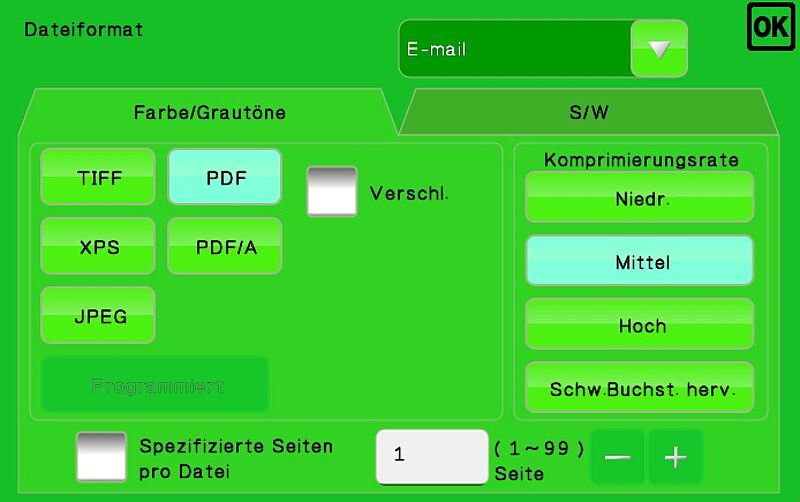
- Place several pages to be scanned face down on the template stack, a PDF file will be created from all pages if not set otherwise under "File format".
- The default settings are optimised for creating PDF files of medium quality for many pages. If there are no special requirements, do not change the default settings.
- If the scan job generates a file larger than 8 MB, the job is split and several mails are sent with parts of the entire document.
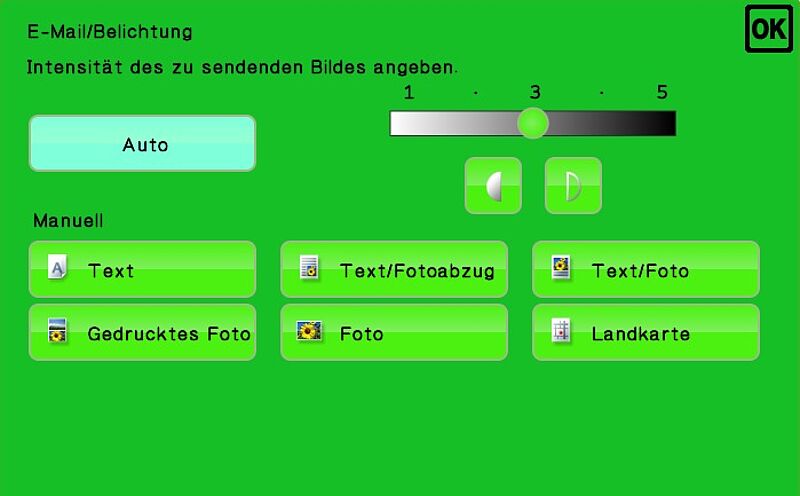
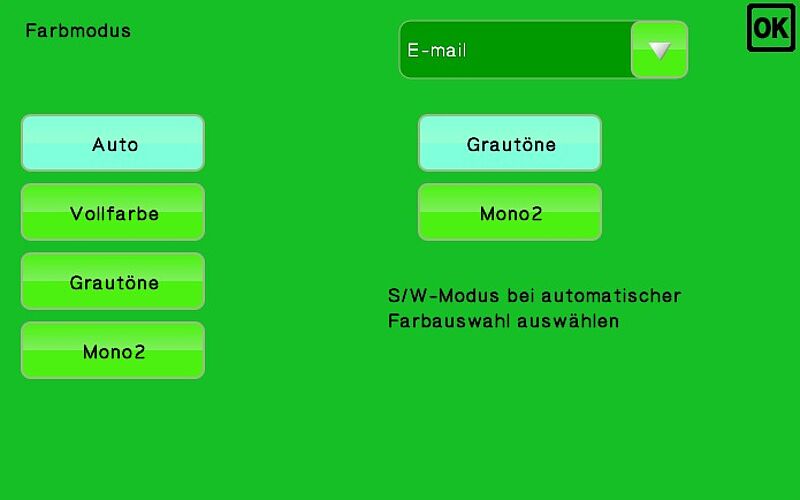
The option "Belichtung" (exposure) serves to optimise the scan according to the type of original (text, photo). Of course, the exposure can also be adjusted manually, e.g. for a light-coloured font.
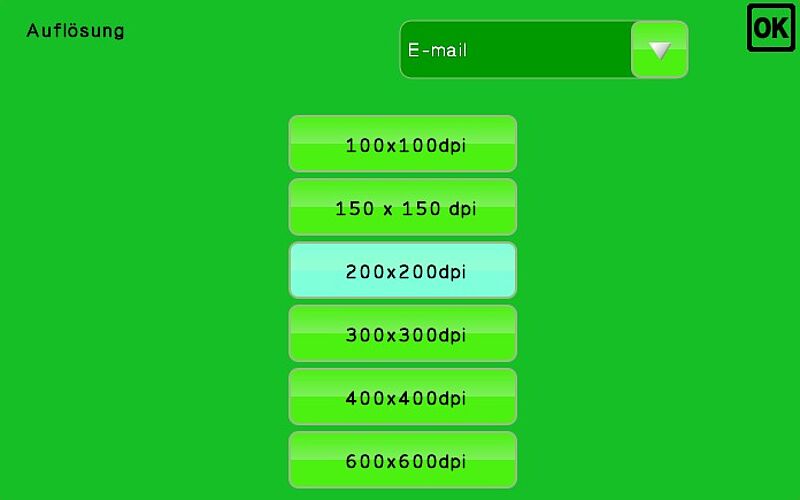
For high quality scans, the resolution can be increased. However, with higher resolution, the transmission files also quickly become larger. Thus, high resolutions are more suitable for single scans.