






The ZIK’s remit essentially covers the following areas:
- Design, installation and maintenance of the campus network
- Connecting the university to the German Research Network (DFN)
- Connecting external networks (e.g. Holzhausen student halls of residence, Haus am Rügendamm)
- Operation of central servers (e.g. email, web, authentication and name servers)
- Support for the IT systems of the university administration and the Foreign Language Centre
- Operation of the HIS administration software
We are available to provide support to the relevant departments, which are responsible for the following tasks:
- HOST website: Head of University Communications
- Emails to all students and staff: University Communications Department
- Laboratories, computer rooms: IT officers of the respective academic departments
Stralsund University of Applied Sciences is a member of the eduroam network. This means that all members of the university have free internet access at other institutions that are also part of the eduroam network.
A map of all eduroam locations worldwide can be found here.
With eduroam, it is particularly important to ensure that your device is set up correctly. If set up incorrectly, your login details may be accessed by third parties.
Setting up Wi-Fi access
Your login details are the same as those for your email account.
In the webmail interface, webmail.hochschule-stralsund.de, you can set up a separate password for Wi-Fi.
To access the internet, please use the network name “eduroam”. This will allow you to connect to the internet via Wi-Fi at other institutions within the eduroam network worldwide without having to log in again.
To set this up on your device, please ensure you use the CAT tool! You can find it at: https://cat.eduroam.org
Please note that if the setup is incorrect, your login details can be stolen very easily!
The first time you use the CAT tool, a security warning will appear regarding the installation of a new root certificate: “DFN-Verein Community Root CA 2022”. The certificate’s fingerprint is:
58815465 3f9fC85A 37F579BC FACD2B1D D91084EE.
Please confirm this warning by selecting “Yes”.
Further information
To set up the “eduroam” Wi-Fi network on your smartphone or iPhone, please use the geteduroam tool!
Here is the link for Android: https://play.google.com/store/apps/details?id=app.eduroam.geteduroam
Here is the link for iOS: https://apps.apple.com/us/app/geteduroam/id1504076137
Every member of the university is assigned an email address in the format vorname.nachname@hochschule-stralsund.de. If required, emails sent to this address can be forwarded to another email address.
There are three ways to access your email account:
- Web-based access:
- POP3:
- all emails are downloaded from the email server to the local computer and then deleted from the server
- IMAPs:
- With this method, emails remain on the email server and are only downloaded for viewing, but are not deleted
We recommend using IMAP. This allows the mailbox to be managed from multiple computers. The latest data is available on every computer. Web-based access also uses the same data. IMAP ensures the greatest possible flexibility. The maximum mailbox size for students is 1500MB.
We recommend using the latest version of Mozilla Thunderbird as your email client. To set it up, simply use the auto-configuration; all the necessary settings will be detected automatically once you have entered your name, email address and password.
Other email clients generally work as well, but cannot be fully supported and may be subject to restrictions.
You can manage email forwarding and out-of-office notifications yourself. To do so, please use the ‘Filters’ link in the basic version of the webmail interface.
Important note for webmail users
: If you receive an error message from your browser instead of a login page, please update your browser! Mozilla users may need to enable the ‘Use TLS 1.0’ option under the menu item Tools -> Options -> Advanced -> Encryption.
Authenticity and confidentiality
To prevent the forgery of a false sender, the sender’s email address must match your login name. The authenticity of the email to be sent can be further enhanced by digitally signing it. To do this, use advanced certificates from the DFN-PKI.
Encryption systems can be used to protect the confidentiality of the data being transmitted. Email programmes such as Thunderbird provide user-friendly support for asymmetric cryptography (private/public-key methods). You can use self-signed keys or advanced certificates from the DFN-PKI.
To prevent e-mail traffic between the e-mail programme and the e-mail server from being intercepted, the university’s e-mail system only offers e-mail services with SSL encryption (SMTP, IMAP and POP).
Further information on email security risks can be found in the IT-Grundschutz catalogue published by the Federal Office for Information Security.
Login details for the webmail interface (for university email addresses only):
- Address:
- Username:
- Your full email address (e.g. max.mustermann@hochschule-stralsund.de)
- Password:
- Initial password as stated on your master sheet, unless changed
Access details for POP3/IMAP:
- Incoming mail server:
- imap.hochschule-stralsund.de
- Username:
- Your full email address (e.g. max.mustermann@hochschule-stralsund.de)
- Password:
- Initial password as stated on your student record, unless changed
- Port:
- 995 (POP3s)
- 993 (IMAPs)
- Connection type:
- SSL
- IMAP directory:
- no longer required
SMTP login details (for sending email):
- Outgoing mail server:
- smtp.hochschule-stralsund.de
- Username:
- Email address (e.g. max.mustermann@hochschule-stralsund.de)
- Password:
- Initial password as stated on your student record, unless changed
- Port:
- 465
- Connection type:
- SSL
Go to the HOST MATLAB portal (https://de.mathworks.com/academia/tah-portal/hochschule-stralsund-40684631.html).
Select ‘Register now’ in the ‘Request MATLAB and Simulink’ section.
Log in to your MathWorks account linked to your university licence.
(You may be asked to log in with your university credentials first. “Don’t have an account? Create one!”).Click the download button and download the latest release.
(You can also download earlier releases).Select a supported platform and download the installer.
- Launch the installer.
- In the installer: Select ‘Log in with a MathWorks Account’ and follow the instructions.
- At the appropriate stage, select the Academic – Total Headcount licence labelled ‘Individual’.
- Select the products you wish to download and start the installation.
- Once the products have been downloaded and installed, ensure the “Activate MATLAB” tick box is ticked; click “Next”.
- Follow the instructions to activate MATLAB.
Detailed installation instructions can be found at: https://www.mathworks.com/matlabcentral/answers/98886
To obtain the HOST-TAH licence, which allows you to install MathWorks software on the university’s computers, please contact Mr Gerald Gröbe (gerald.groebe@hochschule-stralsund.de).
You can apply for an account informally by emailing
it-support@hochschule-stralsund.de.
Please also state the end date of your LimeSurvey usage period in your application email!
Once your application has been processed, you will receive an invitation email from LimeSurvey containing your login details.
Using LimeSurvey, HOST students and staff can use this survey tool on their personal devices.
The following are eligible:
enrolled students for the duration of their studies
andHOST staff.
The right of use expires for students on the date specified as the end of the usage period or upon de-registration, and for staff upon the end of their affiliation with the university.
Commercial use of the product is strictly prohibited.
As part of the Student Advantage and Teacher Benefits schemes, HOST students and staff can use Microsoft M365 free of charge on their personal devices.
The following are eligible:
- enrolled students for the duration of their studies
and - HOST staff.
The right to use the software expires for students upon de-registration and
for staff upon the end of their employment at the university.
Commercial use of the product is strictly prohibited.
Create an account
Accessing the Microsoft sign-in page.
Creating a free Office 365 account
Click the “Get started now” button on the page.
Select the appropriate status. (Teacher status does not offer any special benefits, but is recorded differently.)
Create an account,
enter your surname and first name,
and set a password. This is a password for your Microsoft account and has nothing to do with HOST passwords.
A 6-digit verification code will be sent to the email address you provided. This is used to verify your eligibility and must be entered here.
At this stage, you can invite other people to use the MSO365 software, for example, to work together on projects.
Please note that these people must also be authorised to use the programme, i.e. they must be members of HOST.
M365 Webclient & Downloadcenter
At the end of the installation, you will be asked to confirm your age.
Once you have entered this information, the creation of your Microsoft account is complete and you can open the MS portal and install MS Office 365 on up to 5 devices.
Alternatively, you can apply for access to Office 365 via the university’s e-HOST portal.
Go to the portal
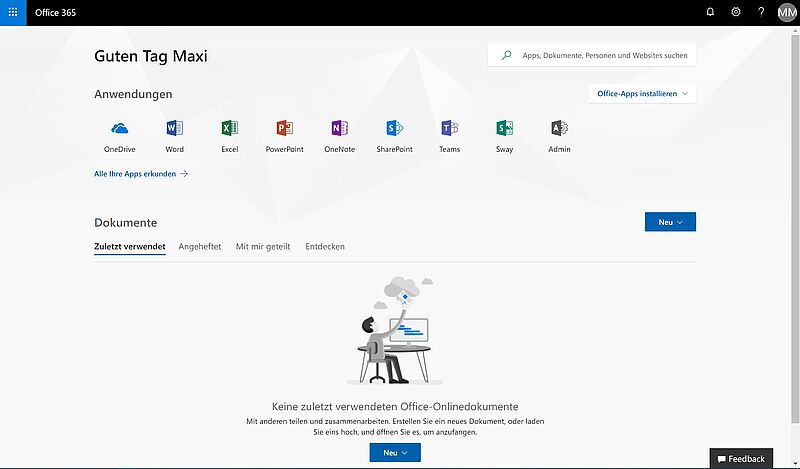
Once you have completed the account creation process, you will be taken to the Office 365 portal.
You can access this portal at any time via
https://portal.microsoftonline.com
.
Log in using your university email address and the password you were assigned.
The HOST Card (in various versions) is issued to students, staff and lecturers at the university.
It offers the following functions:
- Payment in the canteen and cafeteria
- Access control for buildings 04/06/19/21
- Library card for the university library
- Access control for the car parks via the barrier system at Building 21
- Logging in to the printing system
Special functions for students:
- Student ID card
- Updating validity at the validation stations in Buildings 1 and 3
Special functions for staff:
- Time recording
You can find instructions on how to set up remote access (VPN access) to the library on the UniversityLibrary website under Media Search > Remote Access (VPN access)
To combat spam, we use, amongst other things, a method known as greylisting, which may delay the acceptance of emails from mail servers that are not known to be trustworthy.
ZIK
Centre for Information and Communication Technology
(University Computer Centre)
Building 1
, 2nd floor (North entrance)
Tel: +49 3831 45 7700 (Hotline)
Support: it-support@hochschule-stralsund.de